Category: Linux

Nose, Face, Spite. Fast-twitching.

By rwhite, April 11, 2010 12:28 am

Nose, Face, Spite. Fast-twitching.

2010-04-10

by Richard White

The curse of the fast-twitch response neural response (and I’m perfectly aware that I’m mixing a muscle property with brain activity in that metaphor, but go with me on this), is that emotions can blaze along as quickly as thinking does. I like to think that I’m relatively quick in grasping the fundamentals of a problem, or seeing through a tangle of talking points to a logical conclusion, but I occasionally find myself at the mercy of sudden and strong emotional responses to situations.

Ask teacher/fellow-geek Aaron about the little jaw twitch I get right before I freak out. He’s seen me in enough stressful situations to know the warning signs.

I’m not twitching right now, but I was a little troubled last night to read this bit of news from the well-connected John Gruber:

A few months ago, I heard suggestions that Apple had tentative plans to release a developer beta of Mac OS X 10.7 at WWDC this June. That is no longer the case. Mac OS X 10.7 development continues, but with a reduced team and an unknown schedule. It’s my educated guess that there will be no 10.7 news at WWDC this year, and probably none until WWDC 2011.

Apple’s company-wide focus has since been focused intensely on one thing: iPhone OS 4.1 The number one priority at Apple is to grow mobile market share faster than Android. Anything that is not directly competitive with Android is on the back burner.

Okay. That’s not good.

My deal with Apple is simply this: deliver products that are better than the competition by a factor of two or three, products that make me happily spend top dollar for their outstanding quality and Apple’s superior customer support. Do that, and I’m your fan-boy. Ever since I switched to Apple from the PC world almost 20 years ago, they have delivered on that promise.

And for the moment, I guess they still are, although the iPad isn’t part of that promise for me. Nor the iPod, nor the iPhone. For me, Apple’s superiority has been its hardware and its software, all built around the rock solid OS X, running on top of the Darwin flavor of UNIX. It’s been a great ride, and I owe so much of my own technological workflow to those, and the third-party apps built for that ecosystem.

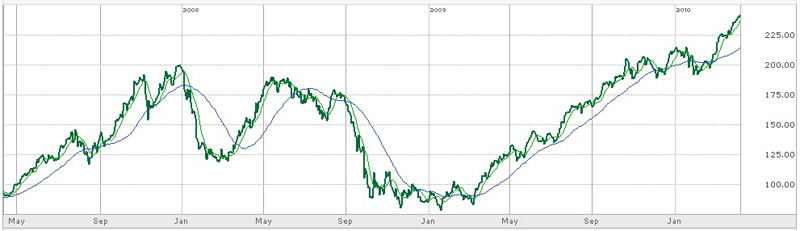
If Gruber’s intuition is true, though, any significant growth or evolution in that ecosystem has been stunted, as all hands on Cupertino’s deck rush toward the various mobile platforms—iPhone and iPad. I’m not saying that they shouldn’t devote significant attention to that front: I’m an Apple stockholder, and while the rest of the world is struggling to emerge from that “economic downturn”, AAPL is doing just fine, thank you. When I wear my investor hat, I’m a happy man.

But put on my technology hat and I start to get a little worried. Development on the new operating system, as mentioned above, has apparently slowed or stopped completely. And the top-of-the-line laptops haven’t come out with a significant refresh in years. I used to be an an 18-month hardware upgrade cycle, based both on the release cycle from Apple and the amount of stress I put on my machine, carrying it back and forth to school, to classes, to office, to home… The machine I’m composing this post on is almost three years old. It’s serviceable, but… Apple’s development has slowed in this area as well. Let’s see, three years ago… that was just about the time that the iPhone came out.

Apple is currently struggling to serve two masters: the geeks and the public. Not all of the geeks are real happy right now, and some of them occasionally make noises about jumping ship in favor of other, more open, worlds: Google’s Android-based phone systems, Linux (including my personal favorite, the excellent LinuxMint), etc. Sometimes, they come swimming back to Apple, in a classic case of “I’m sorry… you were right… turns out that the grass isn’t as green over there as I thought it was…”

Regardless of what happens, it’s going to be fascinating to watch.

I’ve been told as an investor that I need to be smart, and not think with my heart. For years I’ve invested in Apple more as a result of my strong belief in their products rather than any deep financial analysis. I suppose it’s a bit ironic that, with their stock at an all-time high, I find myself believing in them a little less than I did before.

At least until the new MacBook Pros come out.

Me, next week, when that happens: “Oooooh! Shiny!!! I love Apple!!!”

Ah, the curse of the fast-twitch neuron.

Here comes Linux, part 3

By rwhite, December 13, 2009 11:13 pm

Here comes Linux, part 3

2009-12-12

by Richard White

Linux Mint has lots of software included with it: Firefox for browsing, Pidgin for chatting, Thunderbird for email, OpenOffice for working with Microsoft Office documents (Word documents, Excel spreadsheets, PowerPoint presentations, etc.)

Chances are, though, that you’ll want to add software on your Linux machine, just as you would on any Windows or Mac machine. I know I did. I wanted to add Skype so that I could videoconferencing capabilities to my nifty little netbook. Other software I’d suggest you consider downloading more or less immediately is DropBox (cross-platform, cloud-based filesharing/syncing between all of your computers) and VLC (cross-platform video playback software).

Let’s look at how you install software on a Linux machine.

There are basically 3 ways, depending on what it is you want to install. In order of increasing complexity, you can:
a) use a “package manager” application that will help you find a install selected programs that have been prepared for your particular distribution;
b) download packages from the Internet and install them yourself;
c) download packages and “compile from source”.

If you’re brand new to Linux, you’ll probably want to stick to the first technique for now–it’s easier for you and safer for the data on your computer. Let’s see how it works.

Installing Skype (using the Linux Mint (Ubuntu) installer):
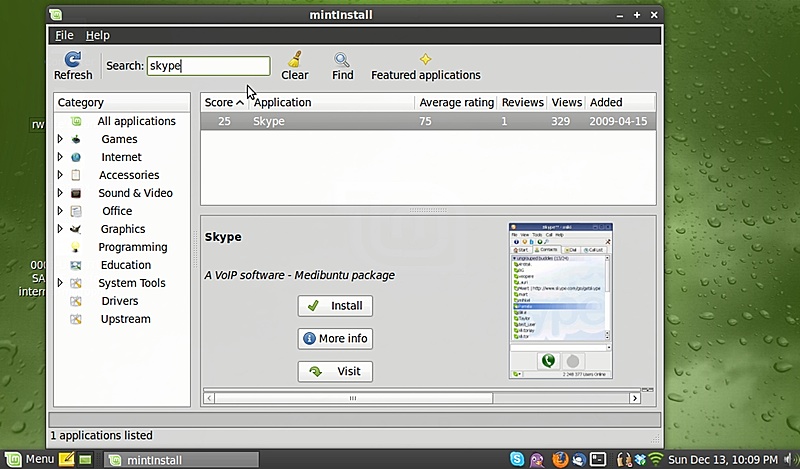
a. From the Linux Mint logo in the bottom-left corner, select Menu -> System -> Software manager
b. Click in the Search box at the top of the mintInstall window and enter Skype
c. Select Skype when it gets found, then click on the “Install” button.

mintInstall-skype

After the installation process is completed, go ahead and close the windows of the installer. You may need to restart the machine before some applications will work. You can launch the new application by clicking on Menu -> Applications -> Internet (in the case of the Skype application), or Menu -> Applications -> All applications and selecting it from the list there.

If you decide that you’ll be using this application, or any others, more frequently, you can click-drag the application from the Applications window down into the bar at the bottom of the window. Once the icon is down there, you can launch the application by just clicking on that icon.

We’ll talk a little more about the other ways that you can install software at some point in the near future. In the meantime, just because we’ve installed Skype on the Mini 10v, don’t think we’re in the clear yet! If you launch Skype, you may well find that the video works just fine, but the internal microphone on the Mini 10v doesn’t work.

What’s up with that? Investigation is ongoing…. In the meantime, if I need to run Skype, I’m using the Macbook Pro. “It just works.”

Here comes Linux, part 2

By rwhite, December 11, 2009 6:17 pm

Here comes Linux, part 2

2009-12-09

by Richard White
Dell Inspiron Mini 10V
The laptop showed up today.

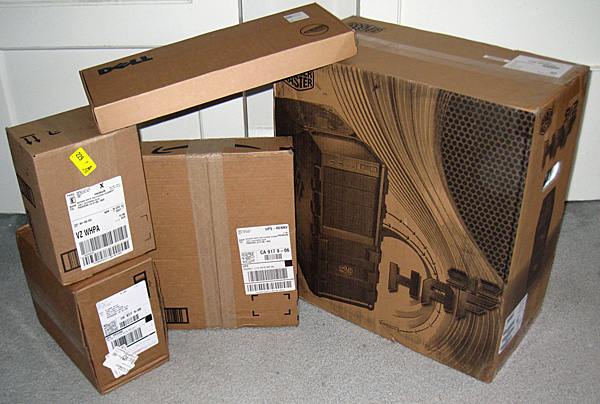
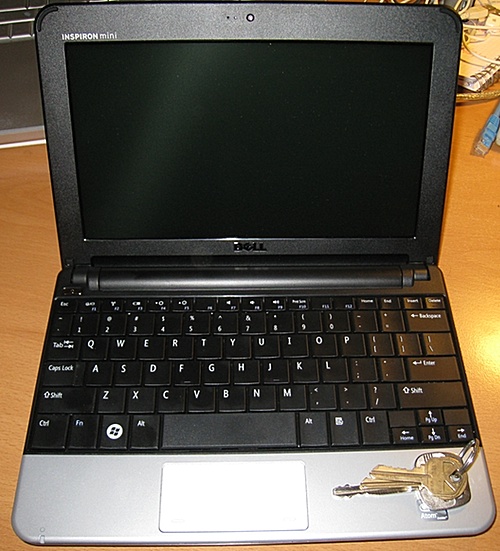
The little Dell Inspiron Mini 10V, pretty much the cheapest little computer that you can get these days, showed up at work in a package quite a bit smaller than I was expecting. I cracked the cardboard open, lifted the lid, and raised my eyebrows. “Wow. That thing is small.”

Kevin the receptionist looked interested, so I pulled it out of the box and handed it to him. “Wow! That is small! You knew it was going to be that small, right?”

I guess I did. I’m not sure I knew it was going to be that small, though. I opened it up to find that the screen was even smaller (still 10-inches diagonally, as expected), but that my hands rested comfortably on the 92%-of-full-size keyboard. The school day was over, but with the arrival of the new machine, I was anticipating that I’d be spending the next few days getting this machine set up.

On this particular evening, though, the task was simple: get Linux Mint installed on the machine.

If you’ve never installed Linux before, there are a number of ways to do it. The easiest by far is to take a CD for a particular distribution (Ubuntu, Knoppix, Linux Mint in my case), boot the machine using that CD, and then install from the CD. I’ve done that before on a number of different machines, and it’s a relatively straightforward process that involves (usually) answering a few questions so that the operating system can be configured to your needs.

For the Dell 10V, the process is somewhat complicated by the fact that it doesn’t have a CD drive. Welcome to the future. Blue-Ray to the contrary, some machines are already losing their optical drives, which allow machines to be small & lighter, or to use valuable space for solid-state drives or batteries. But… how am I going to install the new operating system then?

Enter the flash drive. Modern PCs are able to boot from a flash drive, so it’s a “simple” matter of putting Linux Mint onto the flash drive and making that drive bootable, which I’d been smart enough to do a few days before. The excellent instructions at pendrivelinux.com explained how to get Linux Mint 7.0 onto a flash drive, which goes something like this:

  1. Download the Linux Mint 7 ISO.
  2. Burn ISO to a CD
  3. Insert your Linux Mint7 CD into a PC and boot from it. You’ll be running Linux Mint at this point off the CD. You can use the CD to install Linux Mint on the PC if you wish, but what we’re really interested in doing is creating a bootable USB flash drive for the laptop.
  4. Insert the USB flash drive into the computer running Linux Mint.
  5. From the list of Applications, open Terminal and type:
    sudo su
    apt-get install usb-creator
    usb-creator
  6. In USB Creator
    1. Select the USB disk
    2. Click the button “Make Startup Disk”
  7. IMPORTANT: Download a custom Linux Mint 7 syslinux.cfg file from pendrivelinux.com and copy it to the syslinux directory on your flash drive (overwriting the original).
  8. Eject the USB drive with Linux Mint on it.

So then I waited a few days until the Dell Mini showed up, and didn’t even really bother to boot into Windows XP, although I suppose I could have done that. But I’m a working man, and I don’t want to have to mess about with malware, viruses, and such, so I just decided to jump in and install Linux Mint on the entire thing:

  1. Insert the USB drive into the Dell Mini 10V while it’s turned off.
  2. Startup the 10V, and tap the F2 key a few times just as soon as the Dell logo appears in the startup process. This will get you into the BIOS and allow you to choose the USB drive as the startup disk.
  3. Use the right arrow key to select “Boot” in the top menu. Arrow down to select “USB Storage”. Use the F6 key to move “USB Storage” to the top of the boot list. Now, when the computer starts up, it’ll check the flash drive for a bootable device, which will allow your Linux Mint USB drive to start up the computer.
  4. F10 to Save & Exit the BIOS, and the computer should boot up off the flash drive.
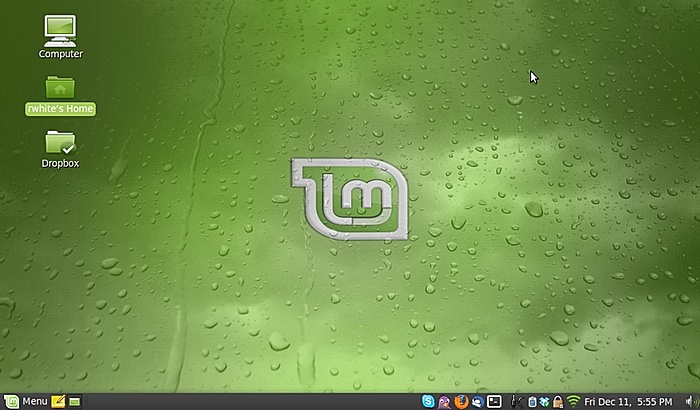
  5. Follow the on-screen instructions to install Linux Mint 7 on your Dell Inspiron Mini 10V.

Linux Mint 7 homescreen

Stay tuned for additional information: additional software installs, strategies, etc.

Here comes Linux, part 1

By rwhite, November 29, 2009 8:51 pm

Here comes Linux, part 1

by Richard White

2009-11-29

“Are you kidding me???” Dee shouted in disbelief.

I’d just told her that I–a faithful Mac user for the last twenty years–had ordered a Dell Mini 10v.

“Are you KIDDING ME??? she shouted again, thinking perhaps that I hadn’t heard her the first time.

“Yeah, I know…” I went on to explain that I’m not giving up the MacbookPro. And I’m definitely not using Windows (no offense). I’ve been looking for a decent portable on which to install Linux Mint, and after passing on the idea of a Lenovo ThinkPad (high quality, but a little higher-priced especially for a second machine), I fell for the “$100 off, free shipping” email that I’d gotten for the Dell.

This is more than just Black Friday extravagance. I’ve been intrigued by the idea of working with Linux on a laptop for a number of years now, ever since Mark Pilgrim famously made his own switch from the Mac three years ago. His reasons included Apple’s proprietary file-formatting and Digital Rights Management (DRM) lockdowns that make playing by their rules occasionally difficult. The hardware, although of high-quality, is known for being expensive, placing it out-of-reach for many students, and a number of teachers. The question became, is it reasonable for me, as an educational technologist to run most, if not all, of my digital life using Free / Open Source Software?

In addition to other topics being discussed here, I’ll be covering the journey here once the new machine arrives in a couple of weeks. For now, though, I’m anticipating using the following software:

Mac Linux
Operating System OS 10.6.2 Linux Mint 8
Browser Safari, Firefox Firefox (pre-installed w/LinuxMint)
Mail client Apple’s Mail.app Mozilla’s Thunderbird (pre-installed w/LinuxMint)
Chat client iChat, Adium, Skype Pidgin (pre-installed w/LinuxMint)
Web development client Panic’s Coda Quanta Plus?
Calendar program iCal Mozilla’s Lightning?
Text editor emacs, BBEdit emacs (must be installed using apt-get), gedit (pre-installed w/LinuxMint)
Office apps Word, Excel, PowerPoint Open Office? (pre-installed w/LinuxMint)
Music playing iTunes Pick one
Music editing Garage Band, Amadeus, Audacity Audacity
Image Processing iPhoto, Photoshop Elements, Acorn, Graphic Converter GIMP

Any suggestions out there? Let me know!

Panorama Theme by Themocracy